Creating a Social Media Content Calendar (30 Days)
Key takeaways
- Build the calendar around 3-4 recurring video series so every slot is a fill-in-the-blanks exercise instead of a blank cell.
- Batch-produce all 30 videos in one afternoon, roughly 30 minutes of generation plus 90 minutes of hooks and scripts.
- Track six columns only: date, platform, hook, caption, status, and series name.
- Start in Google Sheets and use free native schedulers from Meta, TikTok, and YouTube before paying for software.
- Review analytics monthly, kill the lowest watch-time series, and give its slots to your best performer.
Creating a social media content calendar works best when every slot maps to a short-form video format, built around 3-4 recurring series you film in one batch session. This guide gives you a filled-in 30-day template with named series like "Before/After Monday" and "FAQ Friday," so you post daily without editing skills or a marketer on payroll.
Why a video-first calendar beats a generic post grid
A calendar built around static posts gets buried; a calendar built around short-form video works while you sleep. Instagram's own creator guidance treats Reels as the main way to reach people beyond your followers (Instagram Help Center), which is exactly what a 1-10 person business needs from a free organic channel. The practical difference is planning: instead of deciding "what should I post today?", you decide "which of my 3-4 recurring video series fills today's slot?" That question takes 30 seconds. Every slot maps to a vertical video you can produce without editing, and a scheduler like VideoContent's social media video scheduler turns the finished calendar into daily posts automatically.
What goes in a social media content calendar (the 6 columns that matter)
A calendar that works for a solo owner tracks six columns: date, platform, hook, caption, status, and video series name. Everything else is decoration you will abandon by week two.
| Column | What goes in it | Example |
|---|---|---|
| Date | Post day | Tue Nov 4 |
| Platform | One per row | Reels |
| Hook | First 3 seconds, written out | "Nobody tells you this before a facial" |
| Caption | Text plus hashtags | Keep under 100 words |
| Status | Draft / Ready / Posted | Posted |
| Series | Which recurring series | Myth Monday |
The one column most templates skip: video series name
The series column is what turns 30 blank cells into a fill-in-the-blanks exercise. Once each slot belongs to a series like "Myth Monday" or "Before/After," you never stare at an empty calendar wondering what to post. If you run a real estate business, one series can carry most of your week. Track the series name and the hook first; the video itself is the easy part.
How to pick 3-4 recurring video series for your business
A series is a repeatable format: same structure, same length, new topic each week. Pick 3-4 and your 30-day calendar fills itself, because each series runs roughly weekly. The same principle holds: fewer formats, posted consistently, beat a scattershot mix.
Choose formats you can produce in one sitting and that answer real customer questions. If a format needs editing, scripting, or a shoot longer than 15 minutes, it won't survive week three.
Series ideas by vertical: med spa, gym, restaurant, real estate, home services
- Med spa: "Treatment Tuesday" (60-second explainer of one service), before/after reveals, myth-busting.
- Gym: "Form check," member transformations, one-exercise workouts.
- Restaurant: "How we make X," menu item close-ups, staff picks.
- Real estate: listing walkthroughs, neighborhood tours, buyer-tip shorts; see our real estate video generator for a script-first version.
- Home services: "Job of the week," before/after, one quick fix homeowners can try.
Faceless channel operators: series that need no camera
Run "top 3 tips" listicles, quote/text-on-screen hooks, or voiceover explainer series. Generate them from scripts with an AI short-form video tool, batch 8-10 per series, and your calendar is full before you open an editor.
The 30-day video content calendar, filled in
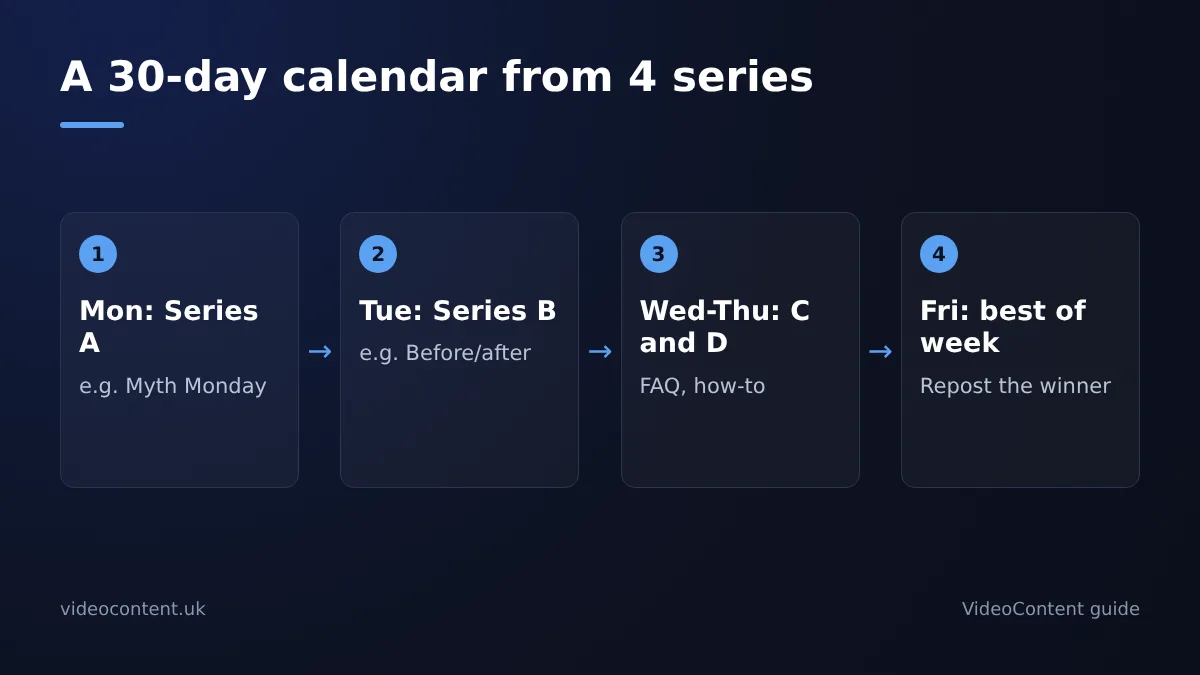
A complete month is four weeks, each week repeating the same rotation of your 3-4 series. If you picked four series, they fill Monday through Thursday slots, and Friday through Sunday reuse the strongest performers or a fifth lightweight series like a poll-turned-video or a customer question. Nothing in the calendar is a one-off idea you invented on a Tuesday night; every slot is a series you already defined.
Week 1-4 structure: how the series rotate
Week 1 sets the pattern: Series A Monday, Series B Tuesday, Series C Wednesday, Series D Thursday, best-of Friday. Weeks 2 and 3 repeat the same rotation with new topics. Week 4 swaps in a recap video or a repost of the month's top performer, because by then you know what worked. That gives you 30 slots from roughly 24 unique videos, and you never face a blank cell.
A worked example: one week for a local gym
Here is the quote-worthy part, because this is where most calendars die. A gym's Monday slot is Series A: 30-second form-fix clips filmed on a phone in one batch session. Tuesday is Series B: a member transformation or PR, shot in 10 minutes and captioned automatically. Wednesday is Series C: a faceless "myth vs fact" reel using a script, stock footage, and an AI voiceover, which is where a tool like VideoContent earns its keep: it writes the script and, on Pro, renders the finished vertical video with captions and a hook in under 60 seconds. Free covers 3 script generations with no credit card; finished videos start on Pro at $19/month and scheduled posting on Pro+ at $39/month (plans).
Thursday is Series D: a coach answering one member question to camera. Friday is a repost of whichever clip from Monday to Thursday got the most views, now pushed to the platform that underperformed. Sixty minutes of batching on Sunday fills all five slots, and weeks 2 through 4 reuse the exact same structure with new topics, so the calendar you build in week 1 is the calendar you run every month.
Google Sheets vs Excel vs calendar software: where to keep your calendar
Start with a spreadsheet. Google Sheets is the better choice over Excel because it lives in the browser, updates on your phone between appointments, and lets you share a view-only link with a VA or front-desk staffer without emailing files around. Excel works fine too, but you lose the real-time sharing unless you pay for OneDrive.
When a spreadsheet stops working
The sheet breaks when posting becomes daily. Copy-pasting captions and uploading videos manually at 7am every morning is the step most owner-operators skip, and an unposted calendar is worth nothing. If you miss more than three posts in a week, that is your signal to move.
What scheduling software adds
Scheduling tools post for you at set times, so the calendar and the posting stop being two jobs. Our own tool, VideoContent, renders videos on Pro ($19/month) and handles scheduled posting on Pro+ ($39/month), which suits a one-person operation; if you already have clips and only need scheduling, the free native schedulers or tools like SendShort cover that. Where we fall short: if you want to schedule non-video posts like photos and text updates alongside your Reels, a spreadsheet plus a general scheduler still beats us. Common setup questions are answered in the VideoContent FAQ.
How to batch-produce 30 videos in one sitting
Batching means you script, generate, and schedule all 30 videos in one session, then never touch editing for the rest of the month. The math is what makes this survivable for a one-person business: 30 videos at 60 seconds each is 30 minutes of generation time, plus roughly 90 minutes to write 30 one-line hooks and two-sentence scripts, plus another hour to load everything into the scheduler. That is a single afternoon, once a month, in exchange for 30 days of daily posting you would otherwise spend 20-30 minutes on every morning, which adds up to 10-15 hours saved per month. The setup work happens once; the daily habit is just checking that posts went out and replying to comments. Owners who skip batching post for two weeks and quit by week three, which is exactly the failure mode this calendar exists to prevent.
Batching with an AI generator: the 60-second-per-video workflow
Pick one video per calendar slot from your recurring series, write a one-line hook and a two-sentence script, and paste it into the generator. On Pro, VideoContent turns each script into a vertical video with voiceover, captions, and hashtags in under 60 seconds, so 30 videos take roughly an afternoon including breaks. CapCut works too, but you assemble clips by hand, which is where most owners give up. Keep your scripts in a spreadsheet so next month's batch starts half-finished; both Google Sheets and Excel ship free calendar templates in their official template galleries.
Where AI generators fall short (honest limits)
AI output is templated. Your 30 videos will share a look, and regular viewers notice by week three. Stock footage and synthetic voiceovers can feel generic for businesses where the owner's face is the brand, like real estate or a salon. And the generator can't film your actual gym floor or your actual dishes. The fix is hybrid: batch 20 templated videos, then film 10 quick phone clips and slot them into the calendar where authenticity matters most.
Scheduling and posting: turning the calendar into daily posts
Once your 30 videos are made, schedule them so posting happens without you. Every platform supports native scheduling: Meta Business Suite handles Instagram Reels and Facebook, TikTok has a built-in scheduler on desktop, and YouTube lets you set Shorts to publish at a set time. All three are free.
Pick one posting time per platform and keep it consistent, since the calendar works best when each slot fires the same way every day. Load a full week or month in one sitting, then check notifications once a day for comments.
If you want scheduling handled inside the same tool you generate videos with, VideoContent's Pro+ plan ($39/month) includes scheduled posting, so generation and publishing live in one place. Otherwise, the native schedulers above cost nothing and do the job.
Example: a November social media content calendar for a seasonal business
November punishes generic calendars. A med spa pre-sells gift cards before Black Friday; a restaurant pushes holiday bookings; a gym sells New Year starter packages in the last week. Shift your 3-4 series so one becomes seasonal: swap "Tip Tuesday" for "Gift Card Tuesday" or "Book Your Holiday Slot" reels.
Keep the slot structure identical, change only the hooks and on-screen text, so batching stays fast. If a promo week needs more than your usual 3-4 videos, top up with AI-generated clips instead of editing by hand; plan costs change often, so verify current tiers before committing to a tool for the month.
By December 1 you have proof of which November hooks converted, and January's calendar starts from data, not guesses.
How to review the calendar monthly without becoming a data analyst
Once a month, open your TikTok, Reels, and Shorts analytics and write down three numbers per series: average views, average watch time percentage, and how many comments or saves each video got. Fifteen minutes, one sheet, done.
Then make two decisions. Kill the series with the lowest watch time and give its calendar slots to your best performer, maybe as a second episode each week. Keep one slot as an experiment for a new hook or format.
Don't chase views. Watch time tells you whether the video holds people; that's the number that predicts whether a series is worth keeping.
FAQ
How far ahead should I plan a social media content calendar as a small business?
Plan one month ahead, built entirely from your 3-4 recurring series. Batching all 30 videos in a single afternoon means the full month is done before it starts. Review analytics once a month, kill the weakest series, and rebuild next month's calendar from what performed rather than guessing again.
What's the difference between a content calendar and a scheduling tool like Buffer?
The calendar is the plan: dates, hooks, captions, and which recurring series fills each slot. A scheduler is the delivery mechanism that pushes finished videos at set times. You need both, but they're separate jobs. Build the calendar in a spreadsheet first, then use native schedulers or a paid tool to automate posting.
Do I need paid software to run this calendar?
No. The calendar itself lives in a free spreadsheet, and every major platform offers free native scheduling for Reels, TikToks, and Shorts. Paid tools earn their cost only when you want video generation and scheduled posting in one place, or when manual uploading is the step you keep skipping. Start free, and upgrade only if you miss posts two weeks running.