Best Video Editing Apps for Social Media, Matched to You
Key takeaways
- If you will never learn to edit, a script-to-video generator like VideoContent produces a finished vertical video with captions and a hook in under 60 seconds.
- CapCut is the strongest genuinely free option if you enjoy editing and want frame-level control, but it leaves captions, branding, and scheduling to you.
- TikTok, Reels, and Shorts all use 9:16 vertical, so one master video with text kept in the center-safe area covers all three platforms.
- Paid tiers across the main tools run roughly $9 to $39 per month, and the upgrade trigger is usually built-in scheduling rather than better edits.
- Move from consumer apps to team workflow software when coordination, not editing skill, becomes the bottleneck, such as when multiple people post.
The best video editing app for social media depends on your situation: if you never want to edit, a script-to-video generator like VideoContent produces a finished vertical video in under 60 seconds; if you enjoy editing, CapCut covers TikTok, Reels, and Shorts for free. This guide matches each app to your platform, skill level, and team size instead of handing you a generic top-10 list.
If you will never learn to edit
If you will never learn to edit, skip traditional editors entirely and use an AI generator that turns a prompt or an existing clip into a finished vertical video. VideoContent, Submagic, OpusClip, quso.ai, and SendShort all do this, but each fits a slightly different job.
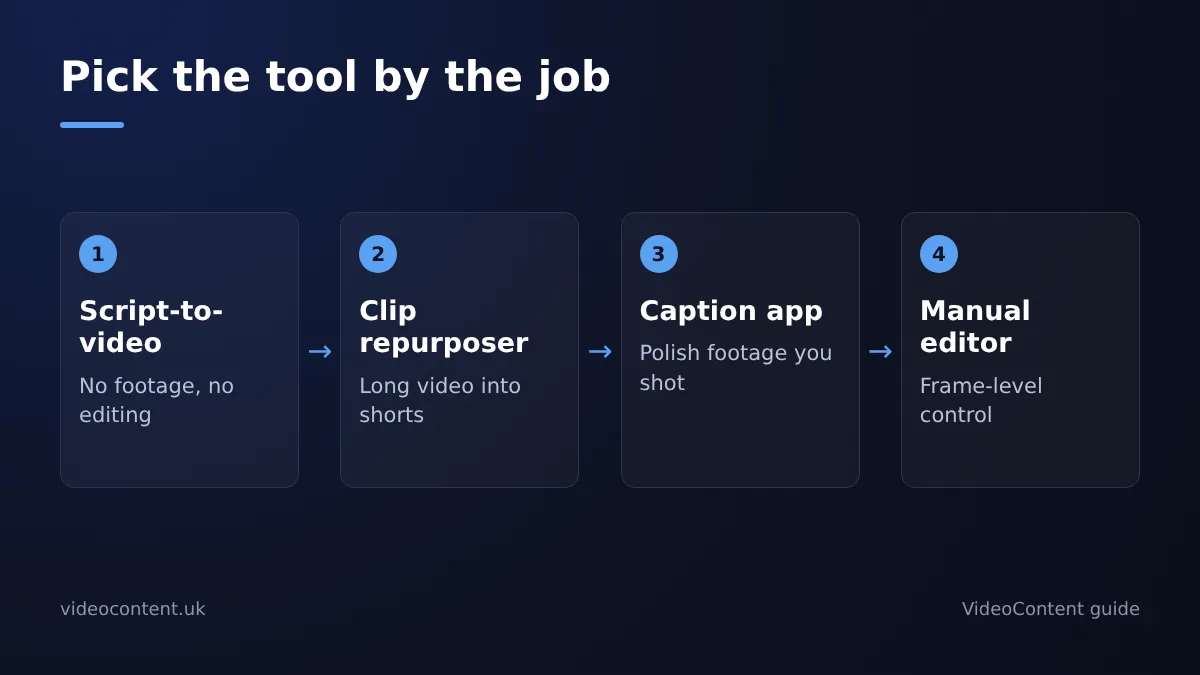
The four product categories hiding behind "AI video generator"
Users who have compared these tools point out that the label covers about four different products, so "best" depends on which job you mean. You have prompt-to-video generators, clip repurposers that cut long footage into Reels, caption-and-effects tools built for talking-head edits, and avatar-based tools. Comparing them is apples to oranges, which is why most ranked lists mislead.
What zero-experience actually requires from a tool
Three things: it must produce a finished vertical video from one input, it must add captions and hooks automatically, and it must not bill you per credit so a single usable clip costs $30. Flat subscription tiers, like VideoContent's Pro at $19 for finished videos or the plans on Submagic's site, make monthly costs predictable. For scheduling without a marketer on payroll, VideoContent's social media video scheduler handles posting on Pro+.
How do you choose between mobile apps and desktop social media video editing software?
The deciding factor is where your footage lives and who touches the edit. If you shoot, trim, and post from one phone in under ten minutes, stay mobile. If you need captions, brand templates, or scheduled posting across TikTok, Reels, and Shorts, you need a browser or desktop tool.
When a phone-only workflow is enough
Phone apps like CapCut handle capture-and-trim jobs well: film a gym walkthrough or a dish coming out of the kitchen, cut the dead air, add trending audio, post. That works when one person does everything the same day. It breaks down the moment you want consistent branding or someone else to handle posting.
When browser-based tools win for small teams
Browser tools run on any laptop, so your front desk staff can caption and schedule without installing anything. They also handle jobs phone apps do badly, like turning a listing into a narrated vertical video, which is what our real estate video generator is built for. Honest limitation: browser tools are weaker for quick on-the-spot edits at an event, where your phone is the only device you have.
Which apps export natively in the aspect ratios TikTok, Reels, and Shorts require?
All three platforms want 9:16 vertical. The difference between tools is whether they export that by default or make you fix it yourself. YouTube treats vertical videos up to 3 minutes as Shorts (YouTube Shorts help).
Default export settings compared
| App | Default 9:16 export | Auto-resize landscape | Typical crop quality |
|---|---|---|---|
| CapCut | Yes, on the TikTok template | Manual, per project | Good, you control framing |
| Submagic | Yes | Yes | Good for talking-head clips |
| OpusClip | Yes | Yes | Decent, occasionally tight framing |
| SendShort | Yes | Yes | Decent |
CapCut's free tier exports 9:16 without a watermark on most templates, per CapCut's official site.
Resizing landscape footage without losing the subject
Auto-reframe tools track the speaker or subject and recenter the crop. They work well on a single talking head and badly on two people or a wide gym floor. Check the preview before you post; a bad crop cuts faces off. If your footage is mostly horizontal (restaurant walkthroughs, property tours), test each tool's reframe on one real clip before committing. For med spa before-and-afters shot vertically on a phone, any of these works; see our med spa video generator page for that workflow.
Match the app to the job
Reading the matrix
Match four things before you pick an app: the platform you post to most, the output format (talking head, b-roll montage, text-on-screen), your editing skill, and how many people touch the video. A med spa owner posting Reels three times a week needs a different tool than a freelancer cutting 20 client videos a month. Most "which app is best" arguments fall apart because the two people arguing are solving different jobs.
Where VideoContent fits, and where it does not
The honest version: VideoContent is built for the owner-operator who will never open a timeline. You type what your business does and it writes the script, captions, and hashtags; Pro ($19/month) renders the vertical video with a voiceover in under 60 seconds, and Pro+ ($39/month) adds scheduled posting. That fits gyms, salons, restaurants, and real estate agents who need daily output from zero editing skill. It is the wrong pick if you already shoot your own footage and want frame-level control. It is also the wrong pick if you need to repurpose long podcast recordings into clips, which is OpusClip's job, or if you mainly add captions to existing video, where Submagic or CapCut do it cheaper. Freelancers serving multiple SMB clients will hit the generation limits and should treat it as a drafting tool, not a full editor.
How do you edit one video once and repurpose it across every social platform?
Edit a single 9:16 master and let each platform get its own variant. That is the whole workflow: one generation, three exports, one scheduling session.
Safe zones and why captions get cut off
TikTok, Reels, and Shorts all overlay UI (usernames, captions, buttons) on the right edge and bottom of the frame, so text placed there gets hidden. Keep captions and your logo inside the center-safe area, roughly the middle 80% of the frame, and export with captions burned in so the master works everywhere. If you edit manually in CapCut, set up guides once and reuse the project as your template. Instagram's help pages list current Reels settings (Instagram Help Center).
Scheduling variants instead of reposting identically
Reposting the identical file to all three platforms works, but variants perform better: swap the hook line in the first two seconds and adjust hashtags per platform. VideoContent renders the master in 9:16 on Pro ($19/month), and its scheduler posts to your connected platforms on Pro+ ($39/month for one platform, more for additional ones). Manual alternative: export three caption files yourself and schedule natively in each app's built-in scheduler, which is free but costs you about 15 minutes per video. The honest tradeoff: VideoContent's scheduler covers YouTube, TikTok, Facebook, and Instagram, so if you also post to Pinterest or LinkedIn you will still handle those by hand.
What features matter most for commercial-intent buyers, like branding, templates, and scheduling?
If you post daily, four features decide whether a tool earns its subscription: a brand kit (your fonts, colors, and logo applied automatically), reusable templates for recurring formats, watermark-free exports, and built-in scheduling. Consumer editors like CapCut cover editing well but leave scheduling to you.
Watermarks and why free tiers cost you reach
A watermark on a Reel signals low-effort content to viewers. Free tiers exist to be outgrown, not lived in. VideoContent's free plan covers 3 script generations with no credit card; Starter ($9/month) removes the watermark, Pro ($19) renders videos, and Pro+ ($39) adds scheduled posting. Submagic, OpusClip, quso.ai, and SendShort all run similar free-tier-to-paid structures, so compare watermark policies and export limits before committing.
Scheduling as the upgrade trigger
Most owners upgrade not for better edits but for the queue: batch a week of vertical videos on Sunday, let the tool post to TikTok, Reels, and Shorts on schedule. If a tool makes you export and upload manually, that's 15 minutes a day you'll skip within a fortnight.
Which free video editing apps for social media are actually usable without watermarks?
Free tier reality check
Most "free" plans in this category are trials wearing a free costume. Submagic, OpusClip, quso.ai, and SendShort all gate exports or slap a watermark on them until you pay. CapCut is the exception: its core editor is genuinely free, which is why it dominates the mobile editing space, though you trade manual editing time for that.
VideoContent's free plan gives you 3 script generations with no credit card, so you can judge the scripts and hooks before paying for rendered videos.
When to upgrade and to which tier
A free tier is enough if you post a few times a week and don't mind doing captions and scheduling by hand. If you need finished daily Reels, TikToks, and Shorts, Pro at $19/month covers rendering, and Pro+ at $39/month adds scheduled posting. One caveat worth quoting: 3 free generations won't tell you much about hook quality across different niches, so test with the topics you actually post about.
When does a business outgrow consumer editing apps and need team workflow software?
Five signals you have outgrown a phone app
You have crossed the line when more than one person posts for the business. Other signals: a staff member needs approval before anything goes live, two locations need matching fonts and colors, a freelancer edits while you post, or you are spending more time fixing mismatched captions than shooting footage. A single CapCut project on one phone stops working the moment editing becomes someone else's job.
Agency and multi-location workflows
At this stage you need shared brand templates, asset libraries, scheduled posting from one dashboard, and per-client or per-location workspaces. Tools built for that include OpusClip, quso.ai, SendShort, and Submagic, each with team-oriented plans. VideoContent fits the same pattern: scheduled posting starts at Pro+ ($39/month), so a two-person shop can plan a week of Reels in one sitting. The honest trade-off: workflow tools cost more and give you less frame-by-frame control than CapCut, so keep the consumer app for one-offs and move to team software only when coordination, not editing skill, is your bottleneck.