How to Add AI Voiceover to a Video Free Online
Key takeaways
- Adding an AI voiceover to a video online takes three steps: upload your footage, paste or generate a script, then pick a voice and export.
- Free tiers usually cap exports with watermarks, 720p resolution, or monthly generation limits, so check those limits before committing time.
- Split your script per scene rather than per paragraph to keep voiceover narration locked to what viewers see on screen.
- Most AI voiceover tools restrict commercial use to paid tiers, so check the terms for commercial rights before posting to a business account.
- If you have usable phone clips, add voiceover to them; if you have no footage, generate the whole vertical video from a script instead.
You can add an AI voiceover to video free online in three steps: upload your footage, paste or type your script, and pick a voice, then export. This guide walks through the free workflow end to end, including where it breaks down on sync, commercial rights, and export limits.
The three-step workflow
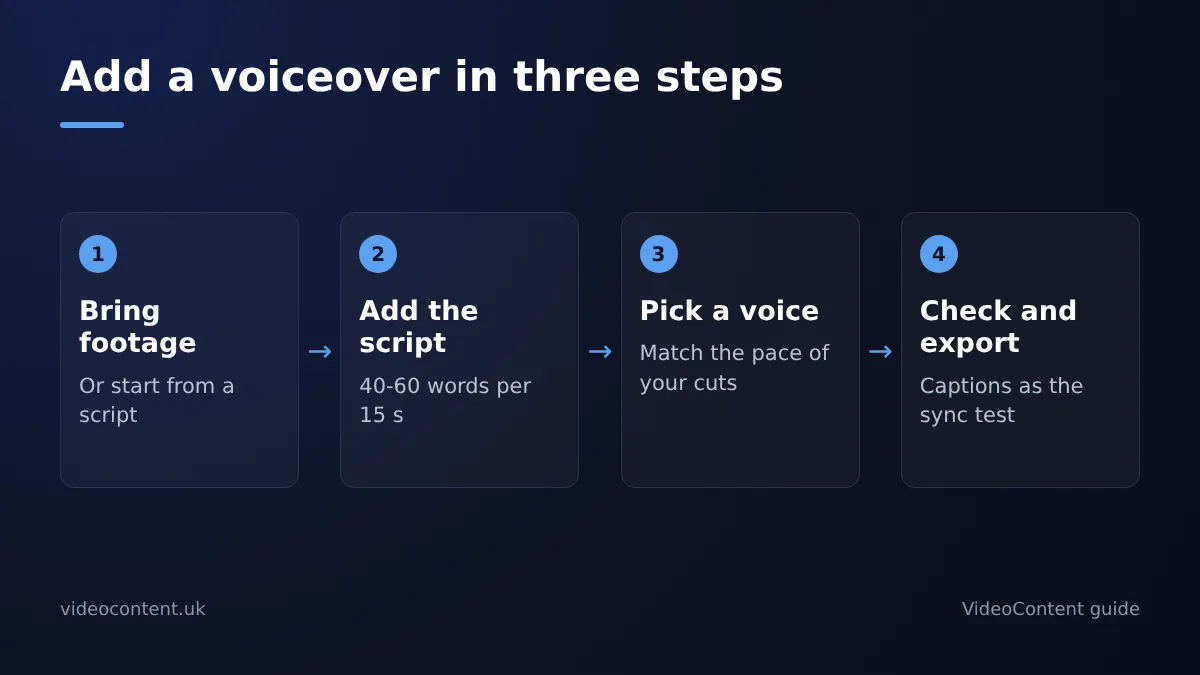
The whole job is three steps: bring in your video, add a script, generate and export. Most tools, including Submagic, run a free tier with no credit card, though free exports usually carry a watermark and a length cap, so check those limits before you commit time.
Step 1: Upload your existing video or start from a script
Upload the clip you already have: the gym walkthrough, the treatment room tour, the before-and-after. Most tools accept MP4 or MOV and vertical 9:16 footage straight from your phone. If you are running a faceless channel and have no footage, skip the upload and start from the script instead.
Step 2: Paste or generate your voiceover script
Paste your script or type a rough outline and let the tool draft one. Aim for 40-60 words per 15 seconds of video so the voiceover does not outrun your footage. Write the hook as your first sentence, not as an afterthought. If you would rather generate the whole video from text, our AI video generator for agencies covers that workflow.
Step 3: Generate, preview, and export
Pick a voice, generate, and listen to the full track before exporting. Check three things: does the pacing match your cuts, are the captions timed to the words, and does the voice sound like someone a customer would trust. Export at 1080p vertical, then post natively to TikTok, Reels, and YouTube Shorts. Where this breaks down: free tiers often limit exports per month and stamp a watermark, so test the workflow free, then upgrade only when posting becomes a daily habit.
Choosing a free AI voiceover tool
Five criteria that actually matter for short-form video
Judge any tool on: voice naturalness (does it sound like a person reading a hook, not a satnav), accent and language range (a salon in Leeds needs a British voice, not a default American one), commercial rights on the free tier, export limits (watermarks, clip length, monthly generations), and whether captions and hashtags ship with the voiceover so the clip is post-ready.
Where VideoContent fits, and where it doesn't
VideoContent is a script-to-video tool: it does not add voiceover to footage you upload. It writes the script, captions, and hashtags, and on Pro it renders a vertical video with the voiceover built in, which suits a med spa or gym posting daily Reels with no footage to hand. Where it falls short: if you already have phone clips you want narrated, use one of the tools below instead. VideoContent's free plan gives you 3 script generations with no card; Pro ($19/month) renders the videos with voiceover, and Pro+ ($39/month) adds scheduled posting (plans). If you want unlimited free exports forever, this is not that tool.
Where Submagic, OpusClip, quso.ai, SendShort, and CapCut fit
| Tool | Best fit | Watch out for |
|---|---|---|
| Submagic | Caption-heavy clips with voiceover | Free export limits |
| OpusClip | Slicing long footage into Shorts | Voiceover is secondary |
| quso.ai (Vidyo) | Repurposing existing video | Credit-based pricing |
| SendShort | Faceless channel workflows | Fewer business templates |
| CapCut | Manual editing, zero cost | You do the syncing yourself |
If you already edit in CapCut, adding an AI voiceover there is free but manual. If you want the whole clip generated from a script in under 60 seconds, VideoContent fits better.
Keeping narration in sync with your footage
Split your script per scene, not per paragraph
Generate a separate voiceover clip for each scene or shot, then drop each clip onto the timeline above its matching footage. This costs you a few extra minutes per video but keeps narration locked to what viewers see. Writing one long script and hoping the pacing matches is where most sync problems start.
Use captions as your sync check
Turn captions on and watch one full pass. If a caption line appears while you're still showing the previous shot, your script segment is too long for that clip. Shorten the line or trim the footage. Captions are the cheapest sync diagnostic because every mismatch is visible on screen. If you'd rather generate the whole vertical video, script to captions to voiceover, in one pass, VideoContent does that for local service businesses. VideoContent's free plan gives you 3 script generations with no card; Pro ($19/month) renders the videos with voiceover, and Pro+ ($39/month) adds scheduled posting (plans).
Manual trim as the fallback
When a clip runs long, cut a pause or a breath rather than speeding up playback, which distorts the voice. Expect to spend five to ten minutes trimming per video; that's the honest price of frame-accurate sync on free tools.
Commercial use on a free plan
Usually not cleanly. Most AI voiceover tools restrict commercial use to paid tiers, and free exports often carry a watermark or a license limited to personal projects. Before posting a voiceover video to your business account, open the tool's terms and check three things: whether the license covers commercial use, whether free exports are watermarked, and whether the voice itself is cleared for monetized platforms.
What to look for in the terms
Search the terms page for "commercial," "license," and "attribution." If a free tier grants commercial rights but caps exports per month, that cap is your real limit. If the terms are silent, assume the answer is no and upgrade before you post.
Watermarks and how they read on Reels and TikTok
Instagram has said it shows less of Reels that carry another app's watermark (Instagram for creators), so a free export can quietly cost you reach. A restaurant posting a menu video, for example, is better off with a clean export from a paid tier, even at $9 a month. Our own free plan follows the same pattern: its one free video carries a watermark, Starter ($9/month) removes it, and finished videos start on Pro. See how that works for a restaurant workflow.
Formats and length limits
Almost every tool in this category exports MP4, and for Reels, TikTok, and YouTube Shorts you want vertical 9:16 at 1080p. If a free tier caps you at 720p or stamps a watermark, that export will look soft next to native phone footage. Treat any numbers below as illustrative ranges and check the tool's own docs before you commit.
Vertical vs landscape export
Most free plans let you pick 9:16, 1:1, or 16:9, but the vertical templates, caption placement, and hooks are built for 9:16 first. If you shoot landscape footage, crop it yourself before uploading or you will lose your subject's head.
Resolution and length caps on free tiers
Expect free tiers to land somewhere around 720p exports, a 1-3 minute ceiling per video, and a handful of generations per month. VideoContent's free plan gives you 3 script generations with no credit card, enough to test hooks before paying for rendered video. If your footage runs longer than the cap, split the clip and voiceover each part separately rather than trimming your best hook.
When the timing drifts
Drift almost always comes from one of three things: sentences too long for the shot, cuts that land mid-word, or a voice that reads faster or slower than your footage moves.
Break long sentences at the cut
If a scene changes while the voiceover is still mid-sentence, the sync feels wrong even when the timing is technically correct. Split the script so each sentence fits inside one shot. Short sentences also give the AI cleaner pauses to work with.
Match voice speed to footage pace
A calm voiceover over fast-cut b-roll drifts within seconds. Pick a voice speed that matches your edit: slower voices for talking-head and demo footage, faster ones for quick-cut Reels and TikTok clips.
Regenerate rather than nudge
When drift shows up, resist dragging the audio clip in your editor. Nudging fixes the first ten seconds and breaks the last thirty. Change the sentence, the speed, or the voice, then regenerate the whole track so the sync holds start to finish.
Footage or no footage: pick a path
Simple rule: if you have usable clips, add voiceover to them. If you have none, generate the video from a script. Both paths end in the same place, a vertical video with captions and a hook, ready for Reels, TikTok, or Shorts, which all favor 9:16 footage (YouTube's Shorts documentation).
You have footage: add voiceover to it
Phone clips of your gym floor, treatment room, or kitchen beat generated stock every time. Upload, paste your script, pick a voice, export.
You have no footage: generate from script
A script-to-video generator builds the visuals, voiceover, captions, and hashtags in one pass. VideoContent does this in under 60 seconds from a text prompt on Pro, and its free plan lets you try 3 script generations with no credit card.
How this looks for a med spa, gym, or restaurant
A salon with no b-roll generates "3 signs your color is fading" from a script. A gym with client clips adds voiceover to those instead. Honest limitation: generated footage looks generic for businesses where trust depends on seeing your real space, so favor your own camera when you can.
Which workflow fits your business
If you run a med spa, gym, or salon and just need one voiceover clip a week, stay on free tools like CapCut. If you're posting daily Reels and TikToks with no footage, a generator earns its cost: on VideoContent that is Pro at $19/month for videos, or Pro+ at $39/month to schedule them without a marketer on payroll.
Freelancers juggling several clients should start at Pro for the volume, and move to Pro+ only when scheduled posting becomes the bottleneck. Faceless channel operators fit the same path: prove the format free, then pay for the posting schedule, not the voices.
Honest limit: none of these tiers fix a bad script. If the hook is weak, no voiceover tool saves it.
FAQ
Is there a completely free AI voiceover video maker with no watermark?
Rarely. Free tiers almost always stamp a watermark or cap exports, and watermarked vertical video gets down-ranked on TikTok and Instagram. CapCut is free if you do the syncing yourself, but most all-in-one tools reserve clean exports for paid plans. Test the workflow free, then upgrade once posting becomes a daily habit.
How long does it take to add a voiceover to a video with AI?
Roughly five to fifteen minutes for a single vertical clip: upload your footage, paste a script at 40-60 words per 15 seconds, pick a voice, and export. Add five to ten minutes of trimming if you want frame-accurate sync per scene. Generating a whole video from a script alone takes under a minute.
Do I need to record my own voice anymore, or does AI sound natural enough for Reels?
For short-form, AI is usually good enough. Judge a voice on whether it sounds like a person reading a hook, not a satnav, and whether your accent is covered, since a Leeds salon needs a British voice, not a default American one. Preview the full track before exporting; if a customer would trust it, ship it.
Can I add an AI voiceover to a video I already filmed on my phone?
Yes, and you should. Phone clips of your gym floor, treatment room, or kitchen beat generated stock every time. Upload the MP4 or MOV, vertical 9:16 straight from your phone, paste your script, and generate. Split the script per scene rather than per paragraph so the narration stays locked to what viewers see.
What happens when I hit the free generation limit mid-month?
You stop generating until the limit resets or you upgrade. Free tiers typically allow only a handful of generations; VideoContent's free plan is 3 script generations in total. Plan tests around your best hooks, and upgrade rather than posting watermarked exports.